Dice Meet is DiceX's Persian online classroom. Nothing to install: it runs in the browser on a phone or a laptop, with a whiteboard and slides, a hand queue, breakout rooms, recording and attendance. And it is connected to DiceX SMS, messaging and the phone book, so word of every class reaches every student.
From joining with an SMS code to the attendance spreadsheet, the classroom is Persian and right-to-left throughout.
GGrade 7 maths12:48RecordingRMs. RezaeiHostPowered by DiceX
Exercise 3, page 24
100%
Exercise 304:57
RMs. Rezaei
AArian
SSara
MMahdiSlower
NNiloufar
KKian
Raised hands
1SaraGive the floor
MahdiSlower
Arian
Chat
ArianI'm on page 24
NiloufarSo we subtract 3 first?
Poll
Clear so far?
Yes72%
Not quite28%
Ms. Rezaei: Now we divide both sides by 2.
Sara raised her handGive the floor
❤️Arian👏Niloufar🎉Sara
Leave
An illustration of a class in Dice Meet. The names are made up. Ms. Rezaei. 2x + 3 = 11. Sara raised her hand. Clear so far?
Class layout
Why Dice Meet
Built for a class, not a business meeting
Most online meeting tools were made for office meetings, and classes are run on them anyway. Dice Meet was built from day one for Persian-speaking teachers and students.
01
Persian from the ground up, not translated
Menus, notices and dialogs are right-to-left, numbers are Persian and dates are in the Solar Hijri calendar. Search understands Arabic yeh and kaf and the zero-width non-joiner, and Persian and English sit correctly side by side on the board.
02
The tools a real class needs
A hand queue with Give the floor, a microphone lock per student, an observer role for inspectors, breakout rooms with a group task, a countdown for quick quizzes and Q&A with votes.
03
Familiar from the first minute
Anyone coming from Skyroom or Adobe Connect finds the same layout under the same name: a large lesson area, with cameras and chat in a column beside it. Teachers don't have to learn from scratch.
04
Made for Iran's internet
It gets through school and office firewalls on port 443, adapts quality for mobile data, has an audio-and-screen-only mode for weak connections, and depends on no service that is blocked in Iran.
05
Control on the server, not in the browser
Every permission a host grants or removes is enforced on the server. Hiding a button is not security: a student cannot unlock a locked microphone even by tampering with the browser.
06
One link for the whole term
The same link works for every session of a course, and the board, notes and open questions carry over to the next one, like a classroom whose board was never wiped.
The real app
Inside a real class
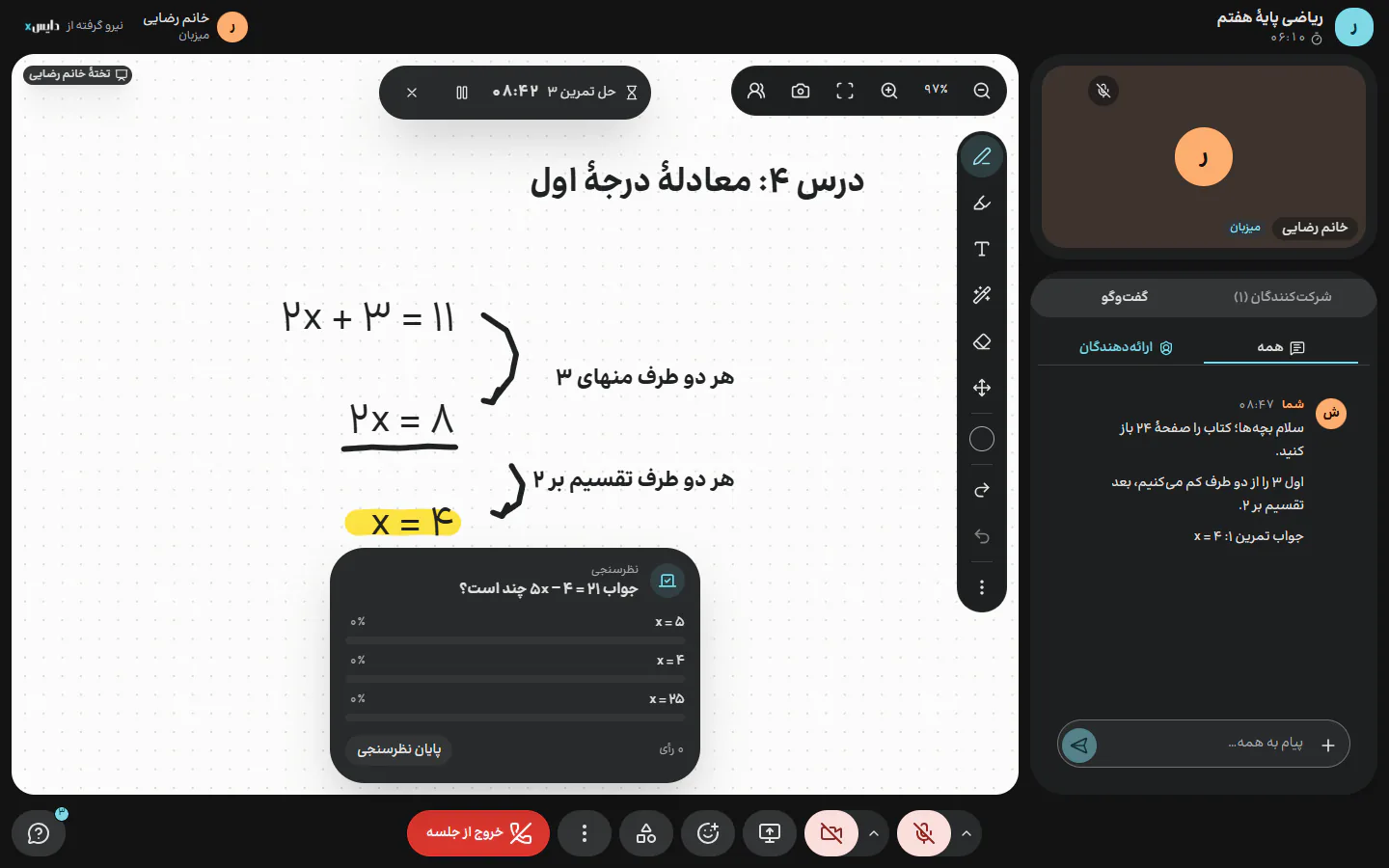
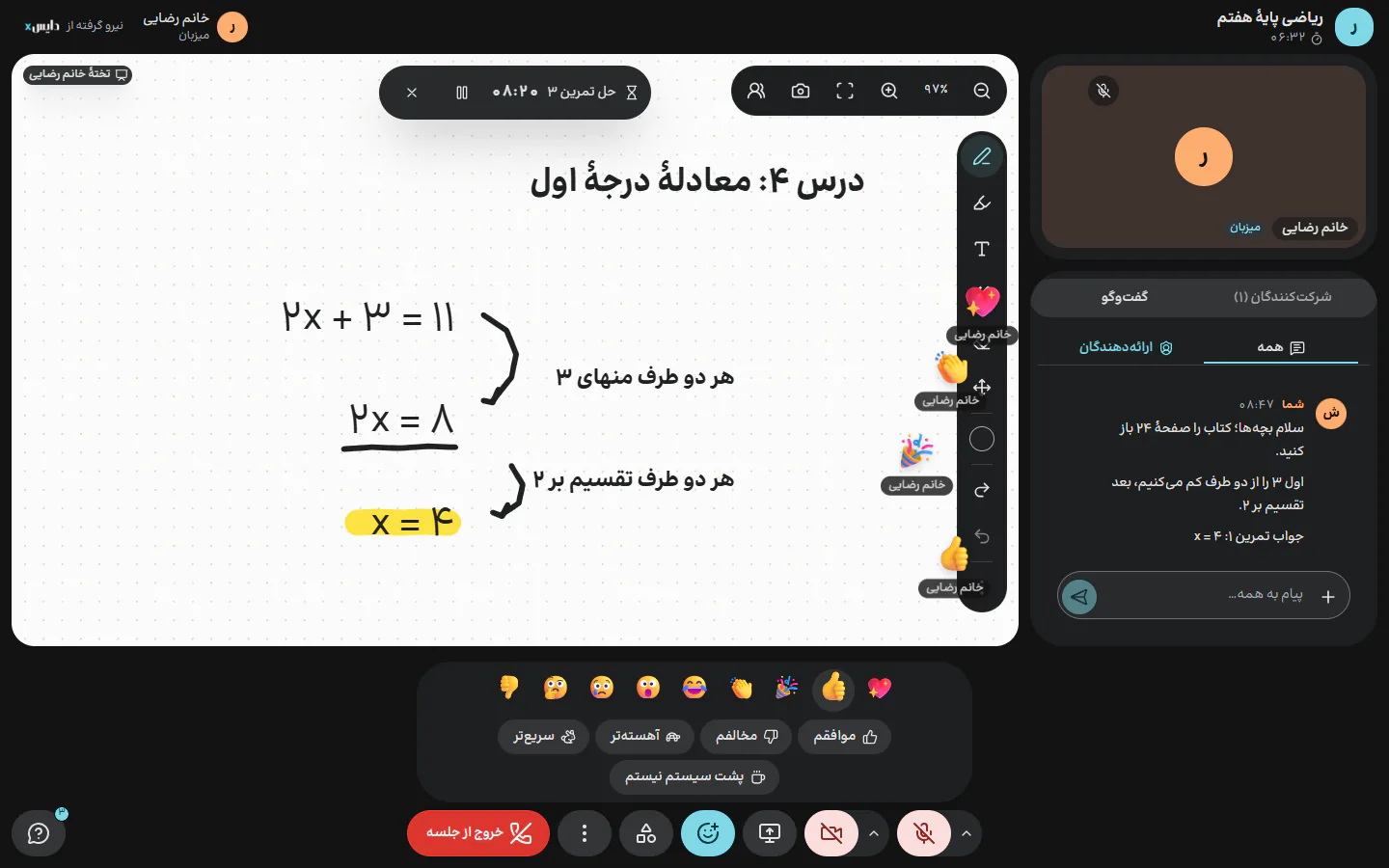
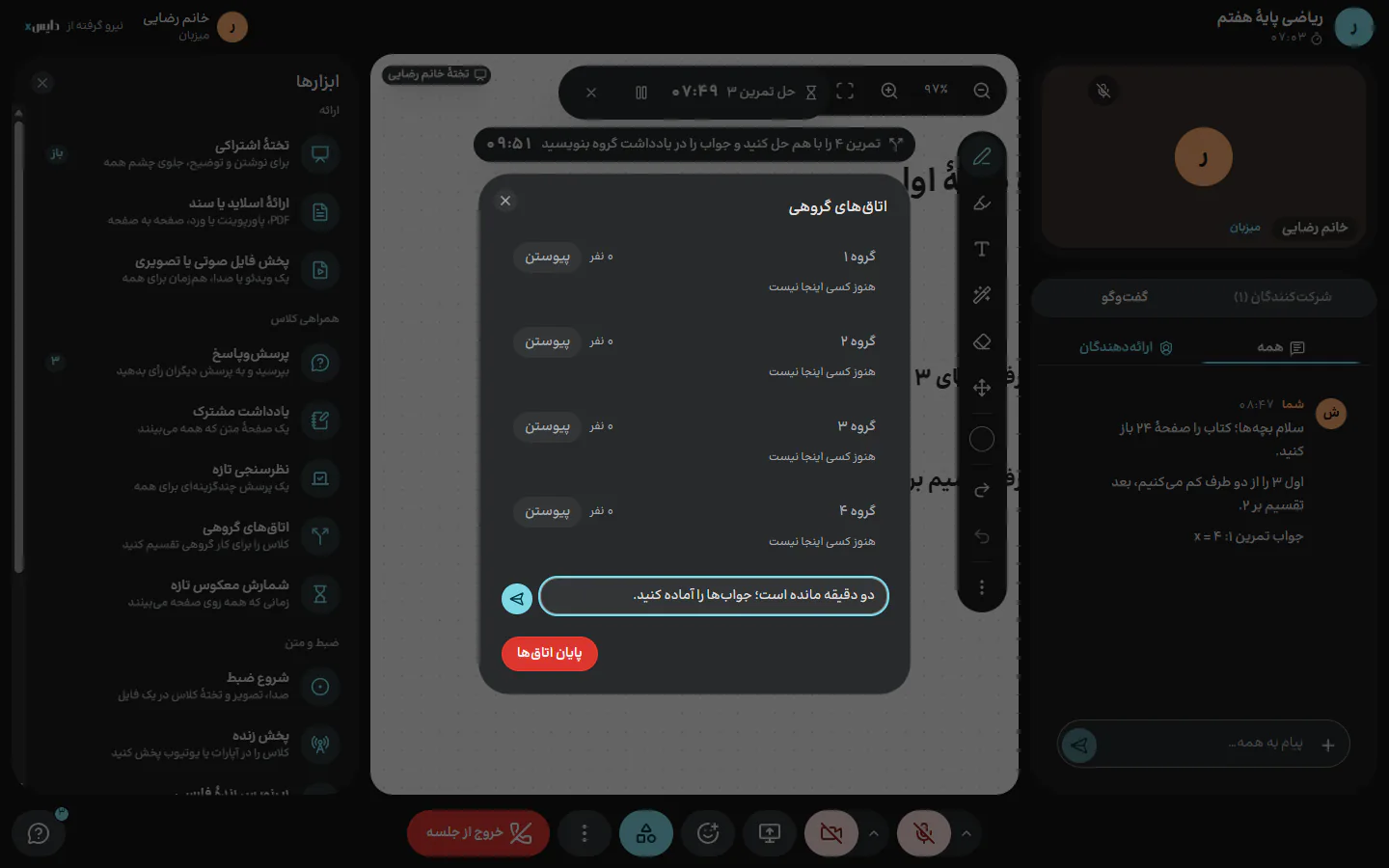
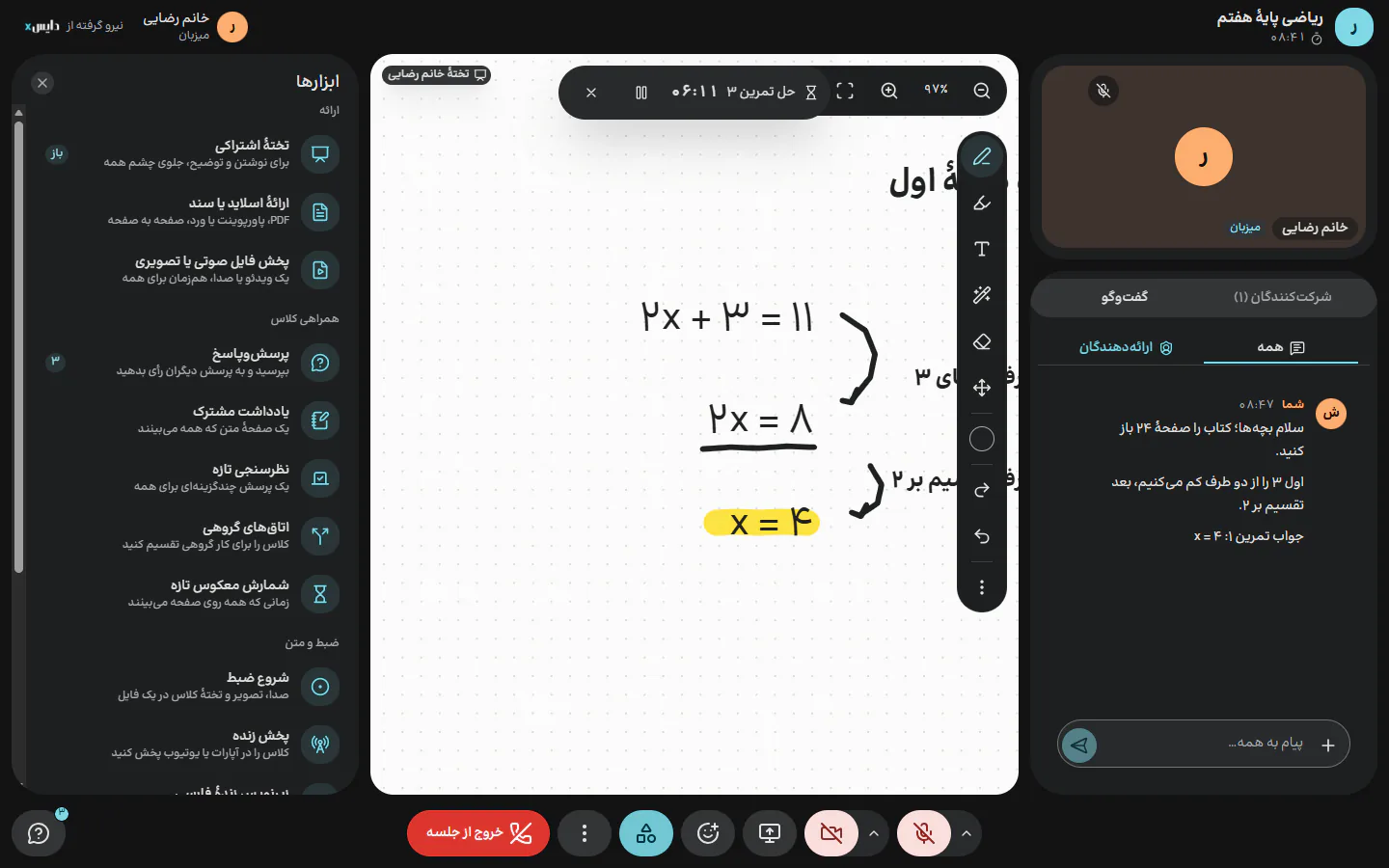
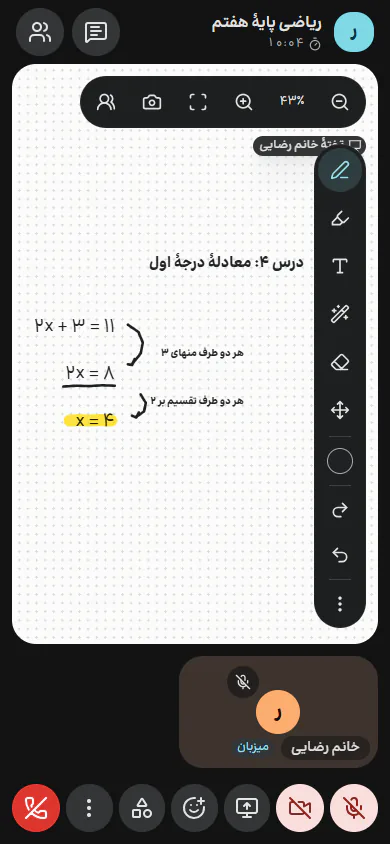
These are Dice Meet's own screens, from a test meeting. Only the names are made up; every button and panel is exactly what teachers and students see.
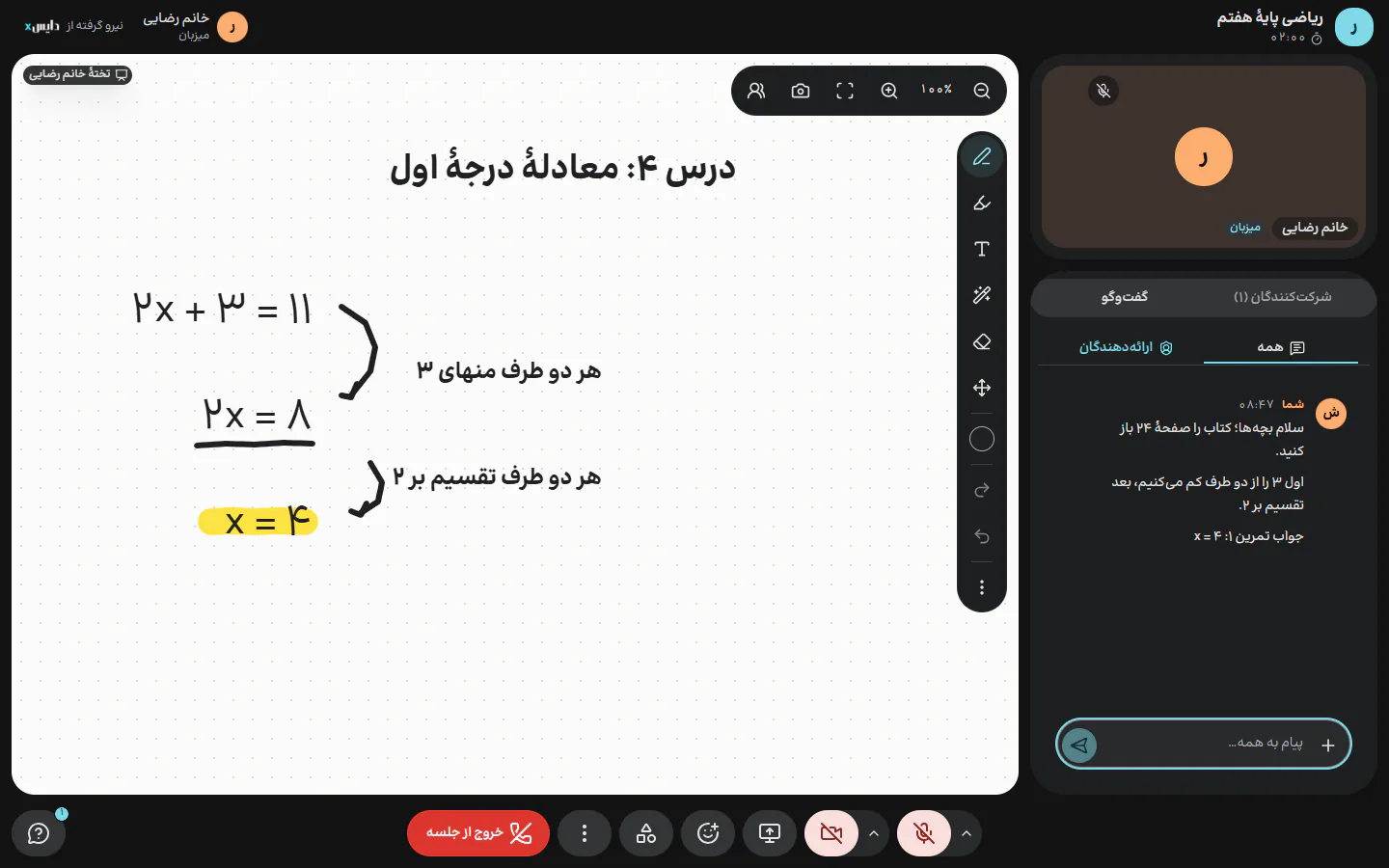
The shared board in the Skyroom layout: a large lesson area, with the camera and chat in a column beside it.
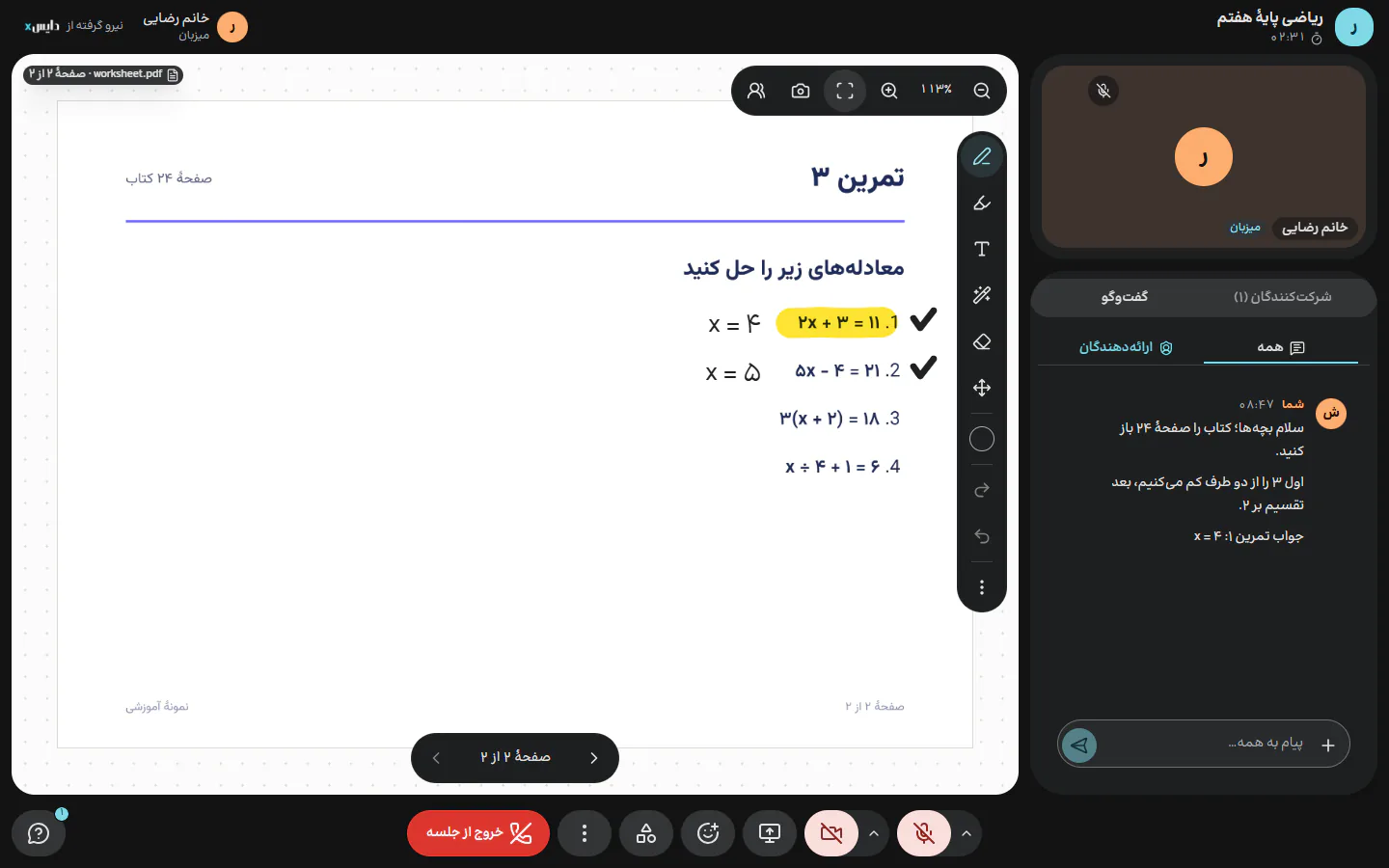
A document on the board, page by page. The presenter writes, highlights and ticks right on the page, and the marks are kept for the next session.
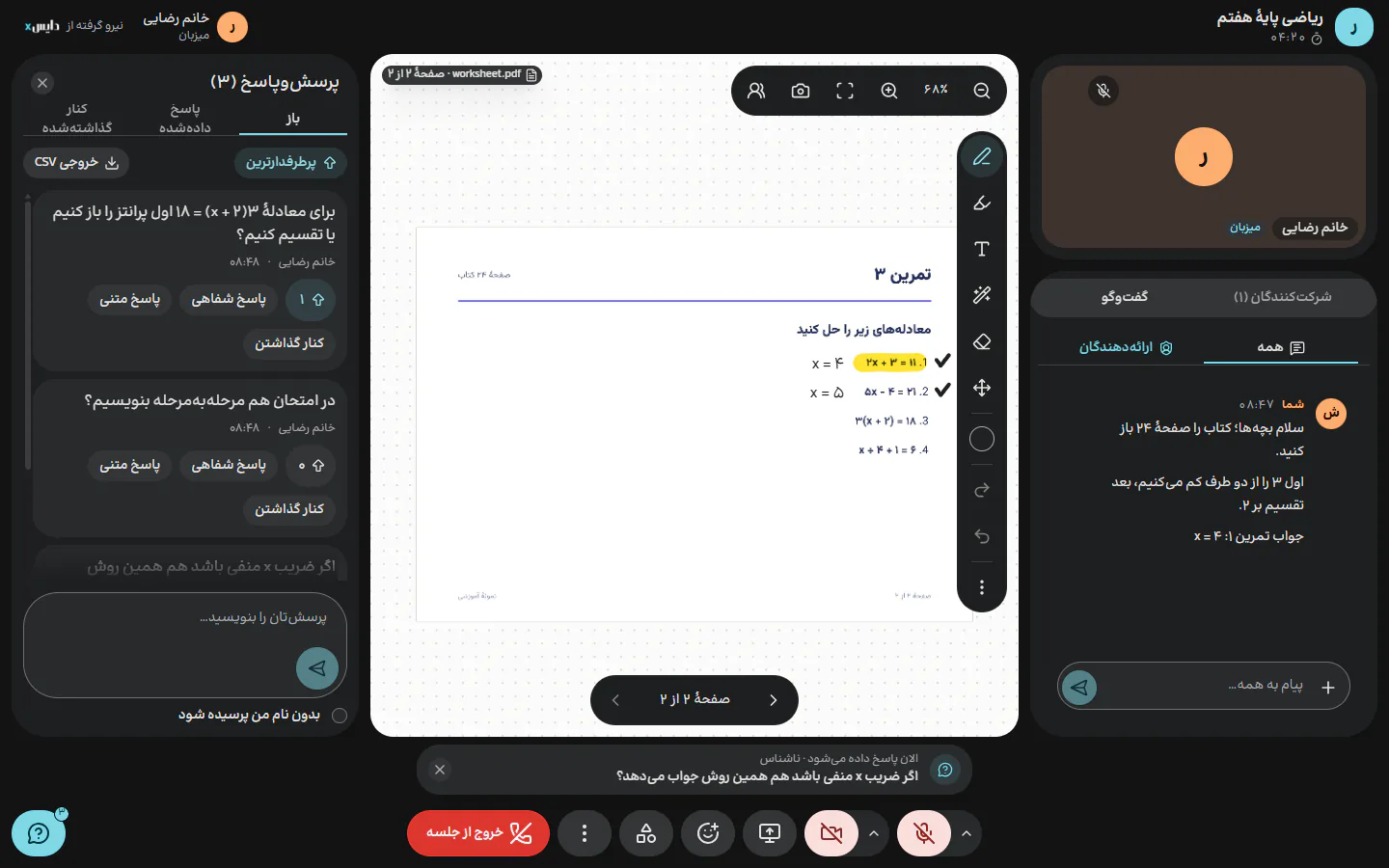
Questions are ranked by the class's votes, anonymous ones included. Answer aloud puts the question above everyone's control bar.
A live poll at the bottom of the stage and a countdown at the top, on everyone's screen at once.
Nine emoji with the sender's name, and five statuses: agree, disagree, slower, faster, away.
Four groups with their task and time left; a message to every room goes out from the same panel.
Every class tool in one panel, in four groups: present, engage, record and transcript, this meeting.
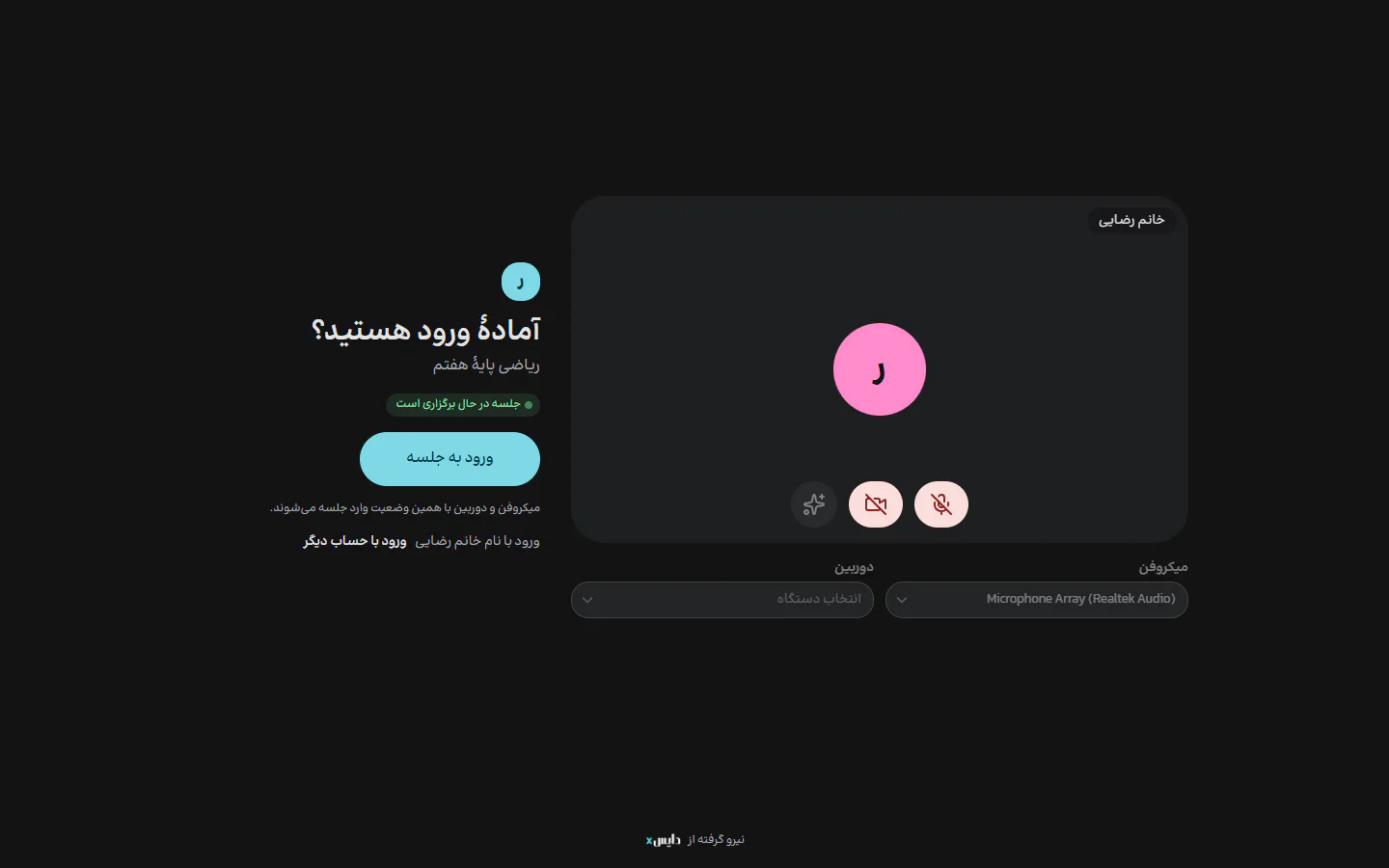
Before joining, everyone checks their camera and microphone, and arrives with them set exactly that way.
On a phone, no install
Screens from the Dice Meet test release, Mehr 1405 (September 2026). People and class names are placeholders.
DiceX ecosystem
Your class is connected to all of DiceX
Dice Meet's phone book, SMS verification codes, wallet and panel are the same ones your organisation uses for every other DiceX service. So the students who come to class can also get SMS, WhatsApp and Bale messages and voice calls from the same account: invitations, reminders, follow-ups and news of the next course.
Before class
Create a meeting on one page, or dozens of classes at once, and pick hosts and students from the phone book.
Phone book
Send the class link once for the whole course, by SMS, WhatsApp or Bale, to that same group.
WhatsApp and Bale
Schedule a reminder of the class time in advance, and a voice call for parents.
Voice calls
In class
Everyone joins with a mobile number and an SMS code, so there is no password to forget.
SMS verification
Board, slides, the hand queue, polls and breakout rooms, all on the same class page.
Recording, live streaming and add-ons are paid for as used, from the same wallet.
Wallet
After class
The attendance report, built from the server's own events, is ready in the same panel.
One panel
Send a follow-up to those who missed it and to those who came, to the same list, without typing a number again.
SMS
Announce the next course with a promotional SMS and a short link with click stats, or stream an open webinar live on Aparat.
Short links
Inside Dice Meet
Phone bookContacts and groups you build once, for the hosts and participants of every meeting.
SMS verificationSign-in tied to a real mobile number, with a six-digit code.
WalletCustom links and add-ons, paid as used from the same credit.
One panelMeetings and attendance reports next to your other DiceX services.
From the same DiceX account
SMSBulk, scheduled and personalised with each recipient's name, on every operator.
WhatsApp and BaleMessages and files to phone-book groups, with scheduled sending.
Voice callsA recorded message or text-to-speech, for people who don't read texts.
Short linksShort links with click statistics, for course announcements.
SMS, messaging, voice calls and short links are separate DiceX services, sent from the same account to the same contact list. Dice Meet does not send messages on your behalf.
Every feature
Every feature, without getting lost
96 features in 14 modules; 90 of them are ready in today's release. Pick a module, or search across all of them.
Joining and admission
From opening the link to taking a seat: simple for the student, in the host's control.
7
1.1
Join page and meeting status
Every meeting has its own address and says, before anyone joins, whether the class is in session. If the link no longer works, it says why in plain words.
1.2
Three ways in: guest, SMS code, password
Guests join with a name and mobile number, members with an SMS code or a password, and the server gives each person the role the admin set in the panel.
1.3
Three access types
Open, host approval or members only. Changing it takes effect at once, even on a class that is running right now.
1.4
Waiting room and join requests
Guests wait at the door, and the host admits each one, or everyone at once.
1.5
Pre-join check
A camera preview, a live microphone meter and device choice before joining; you arrive with your mic and camera exactly as you set them here.
1.6
Staying in after a page refresh
Refreshing the page doesn't mean starting over. One button, no new SMS, and you're back in class.
1.7
Exit page and rejoining
Every exit says what happened and what to do next. After a dropped connection or an accidental leave, nobody is left facing a blank screen.
Stage and layout
Everyone sees the class the way they need to; and when it matters, everyone sees the same thing.
9
2.1
Tile layout
Everyone the same size, side by side; for group discussion and the start of class.
2.2
Speaker layout
Whoever is speaking is shown large and everyone else in a row beside them; for lectures and talks.
2.3
Skyroom and Adobe Connect layouts
A large lesson area with a column of cameras, attendees and chat beside it: the shape teachers and students are already used to.
2.4
Class layout chosen by the host
The teacher decides what everyone sees and can let each person choose their own layout.
2.5
Participant tiles and live cues
A personal colour, a turquoise speaking frame, a muted mic, a raised hand, a weak connection; all at a glance, with no hovering.
2.6
Pin on my screen
Keep one person large on your own screen only; a sign-language interpreter, for example.
2.7
Spotlight for everyone
The host enlarges one person for the whole class: a student explaining an answer, or a guest speaker.
2.8
My own video
Your own picture in a small frame that doesn't take anyone else's place.
2.9
Top bar, timer and full screen
The class name, the real session time and badges for recording, streaming, captions and a locked door; always in view.
Audio and video
Clear sound and a steady picture, on any device and any connection.
9
3.1
Microphone, camera and speaker
Two large buttons that are always within reach and turn pink when off, so nobody forgets their mic is muted.
3.2
Noise and echo suppression, automatic gain
Fan noise, street noise and speaker echo are reduced and volume is levelled automatically.
3.3
Background blur
The person stays sharp and the room behind them is blurred, keeping home life private.
3.4
Hold space to talk
In a large class, hold the space bar and speak; let go and you're muted again.
3.5
Keyboard shortcuts
Ctrl and D for the microphone, Ctrl and E for the camera, without hunting for buttons.
3.6
Volume per person
Turn any participant up or down on your own device only.
3.7
Weak-connection mode
Switch off other people's cameras and only audio, shared screens and the board arrive; class carries on over mobile data.
3.8
Adaptive quality and connection indicator
Each person's video quality adjusts to their own connection automatically, and the teacher can see whose connection is weak.
3.9
Cap on active camerasComing soon
The admin sets how many cameras can be on at once; when the cap is reached, the camera button says why.
Presenting and content
Screen, board, documents and files: everything that puts the lesson in front of everyone.
10
4.1
Screen sharing with tab audio
The whole screen, one window or one browser tab; a video in that tab plays for everyone with its sound.
4.2
Shared whiteboard
An endless board everyone sees at once. Latecomers get everything already written, and a board fault never stops the class.
4.3
Board tools
Pen and highlighter in any colour, Persian and English text, a laser pointer, an eraser that never erases the document underneath, and undo. With a stylus, a resting palm draws nothing.
4.4
Follow the presenter's view
Wherever the presenter looks on the board, everyone sees it too, from a phone to a classroom projector.
4.5
Permission to write on the board
Bring one student up to the board, or open it to the whole class.
4.6
Board snapshot
A picture of the whole board with its document; send it to everyone in chat or save it on your device.
4.7
Clearing the board with a backup
Before the board is cleared, a snapshot is kept in chat so everyone still has it.
4.8
Slides and PDF documents on the board
Everyone moves page by page with the presenter, who writes, highlights and points with the laser on each page.
4.9
PowerPoint and Word conversion
Hand over the file as it is; the server converts it to PDF with Persian fonts and the presentation carries on.
4.10
Play audio and video for everyone
A training video or listening exercise, in sync and with sound for the whole class; play and pause stay with the presenter.
Chat
Public, private and backstage messages, with files, replies and history.
6
5.1
Public chat and history
Messages everyone sees, even those who arrive late, with each person's name in their colour.
5.2
Private chat
A student asks the teacher what they wouldn't ask in front of everyone, and the teacher can have a quiet word with one person.
5.3
Hosts and presenters backchannel
Backstage for the class: teacher and assistant, or moderator and speaker, coordinate without the room seeing.
5.4
Reply and quote
Reply to a specific message, as in a messenger app, so it's clear which answer belongs to which question.
5.5
Files and images in chat
Send an exercise, handout or photo right there; images show inside the chat.
5.6
New-message alerts and unread count
Messages that arrive while chat is closed aren't lost; private and backstage messages get their own heading.
Class engagement
Raised hands, votes, questions, notes and time: the tools that keep a class alive.
8
6.1
Raise hand and turn queue
Hands queue in the real order they went up, timed by the server; the teacher gives the floor to the first in line.
6.2
Status
Agree, disagree, faster, slower, away: silent feedback that doesn't interrupt the lesson.
6.3
Emoji reactions
Nine fixed emoji that float up the side of the stage with the sender's name, to cheer a classmate on.
6.4
Live poll
A multiple-choice question whose card appears at the bottom of everyone's stage, with results updating live.
6.5
Q&A with votes
Questions, even anonymous ones, are ranked by the class's votes and the teacher answers the most wanted first, in writing or aloud. The question list also exports to CSV.
6.6
Shared notes
A lesson summary, new words or the week's homework; only the holder of the pen writes, and everyone sees it live.
6.7
Countdown
For a quick quiz, an exercise or a break, at the top of everyone's stage, with an optional title and an optional sound at the end.
6.8
Attention awareness
When a student switches to another tab, the host sees an Away from the meeting badge on their tile.
Breakout rooms
Split the class for group work and bring everyone back on time.
5
7.1
Creating breakout rooms
Up to eight rooms with a duration and a group task; participants are shared out automatically.
7.2
Moving to a room and back
A thirty-second warning before every move, so nobody is moved mid-sentence without notice.
7.3
Message all rooms and ask for help
The teacher messages every group, and a group that's stuck asks for help with one button.
7.4
Live room list and moving people
Who is in which group and who hasn't arrived yet, and moving anyone with one menu.
7.5
Closing rooms and their rules
Everyone returns to the main class with a warning; each group's board and chat belong to that group alone.
Host control and moderation
Class order in the teacher's hands; every permission is enforced on the server, not just on screen.
11
8.1
Roles and live role changes
Make a student a presenter for their project and switch them back, on the spot.
8.2
Observer role
A principal, inspector or assessor watches the class hidden and silent, and is not in the attendee list.
8.3
Muting mic and camera, and asking to unmute
The host can turn them off but never on; they can only ask, and the person decides.
8.4
Individual locks
Four locks per person: microphone, camera, screen sharing, and chat and interaction. Until the host unlocks them, they stay locked.
8.5
Participant permissions for everyone
The same four locks for the whole class at once; lock them for a test, open them for a free discussion.
8.6
Mute everyone
One button, with confirmation, to quiet the class; hosts are not muted.
8.7
Remove and bar from rejoining
Remove a disruptive person and decide whether they may come back.
8.8
Locking the meeting
Once everyone is in, close the door; nobody new can join, even with the right link.
8.9
End the meeting for everyone
Either you leave, or the class ends for all, closing breakout rooms, recording and the live stream too.
8.10
Host notifications
Raised hands, statuses and people leaving the page; stay informed without being buried in alerts.
8.11
Participant list and search
Attendees grouped by role, with each person's mic, hand and connection state and a menu of actions.
Recording, live streaming and transcripts
The class for later, for outside and for everyone, with everyone present informed.
8
9.1
Recording in the class layout
One video of the stage the class saw: board, slides, shared screen and cameras.
9.2
Audio-only recording
A small file for a spoken class, a counselling session or listening on the go.
9.3
Separate recording per person for editing
Each person's audio, video and screen in a separate file, for producing a course.
9.4
Recording, streaming and captions announced to all
Nobody is recorded or streamed without knowing; the badge stays at the top of the screen until it ends.
9.5
Recording list: watch and download
Each meeting's recordings with date and length; watch in the browser or download the file.
9.6
Live streaming to Aparat, YouTube and any RTMP service
Stream a class or conference live to an audience outside the meeting, without adding load to the class.
9.7
Live Persian captionsBeta
Each person's Persian speech is turned by AI into two-line captions with the speaker's name.
9.8
Full meeting transcriptBeta
Everything said, with speaker names and times; for minutes and for revision before an exam.
Attendance and reports
Who came, when, and how long they stayed; from the server's own events.
4
10.1
Live attendance in the meeting
Each person's joins, leaves, minutes present and dropped connections, during the class itself.
10.2
Attendance export to Excel
A spreadsheet with join, leave, minutes present, dropped connections and screen sharing; for a deputy head or HR.
10.3
Attendance report in the panel
A report for each meeting over any date range, separately for hosts and participants.
10.4
Session history and per-session reportsComing soon
Each session of a recurring class with its start and end time and its own attendance, not a year lumped into one table.
Continuity for recurring classes
One link for the whole term, and a class that picks up next week where it left off.
2
11.1
One link for a whole term
Every meeting is a validity period; a student saves the link once and opens the same one until the term ends.
11.2
Board, notes and questions carry over
Board writing, shared notes and open questions are kept for the next session of the same class.
Meeting management panel
Create, publish and manage meetings, one or a hundred at a time, from the DiceX panel.
7
12.1
Create a meeting on one page
Title, length, access type, hosts and participants, all on one page with a guide alongside.
12.2
Batch creation of up to 500 links
Create a school's twenty classes or an organisation's fifty courses in one go, with numbered links.
12.3
Custom link
A link named after the class or organisation; availability and price show instantly and it is paid from the wallet.
12.4
Hosts and users from the phone book
Pick contacts from the DiceX phone book: one person, or a whole group at once.
12.5
Publish, copy, recreate, edit and delete
Every management action for a meeting in one menu; for repeating classes, recreate one in seconds.
12.6
Access to recordingsComing soon
For each recording, separate permission to watch and to download; students can watch without passing it around.
12.7
Blocking a contactComing soon
A contact who must not return is blocked, and removed if they are in the meeting.
Language, accessibility and experience
Persian from the ground up, for every device and every user.
5
13.1
Persian and right-to-left from the ground up
Not an English app translated: Persian digits, Solar Hijri dates and search that understands Arabic yeh and kaf and the zero-width non-joiner.
13.2
Phone, tablet and laptop
No install, in the browser. Touch targets are at least 44 pixels, big enough for a child's finger.
13.3
Accessibility
Everything works from the keyboard, screen readers get names, text contrast is at least 4.5 to 1, and captions serve the hard of hearing.
13.4
Searchable settings
All personal settings in one window with five sections, and a search that finds any of them.
13.5
Clear messages and resilience
Every error says what happened and what to do, and no error takes the class down.
Security and privacy
Security on the server and privacy by design, not for show.
5
14.1
Server-side permissions
Every connection starts with a server-signed permit; a button that is hidden is also closed on the server.
14.2
Join ticket and SMS verification
Joining is tied to a real mobile number, and each account can be in a meeting in only one place at a time.
14.3
Encryption and domestic infrastructure
Audio and video are encrypted with DTLS-SRTP and data with TLS; the servers are run by DiceX.
14.4
Files, recordings and keys
A private file opens only for the two people involved, and recordings only through signed two-hour links.
14.5
Privacy by design
Anonymous questions really are anonymous, recording is always announced, and nobody's microphone is turned on remotely.
Beta means it works and is still being refined. Coming soon means the server side is ready and its panel screen is on the way.
Under the hood
The DiceX Proprietary Real-Time Engine
Dice Meet runs on infrastructure hosted on DiceX's own servers. Browsers connect to it with standard WebRTC, and the engine, built on patterns proven on the world's largest real-time platforms, delivers audio, video and every class tool to everyone in a fraction of a second.
Teachersends one streamDiceX engineeach person gets what they needClassroom projectorLaptop at homePhone on mobile data
Each person sends their audio and video only once, whether the class has five students or three hundred.
Selective forwardingSFU
The server forwards streams instead of mixing them, so latency stays low and class conversation feels natural.
Adaptive qualitySimulcast · Adaptive Stream
Each viewer gets the quality their tile size and connection call for, and a tile nobody can see isn't sent at all.
Lighter sendingDynacast
A quality nobody is watching isn't produced, so laptops run cooler and phone batteries last longer.
Data channels for class toolsData Channels
Chat, board, polls and every other tool travel as fast as audio and video, over the same meeting connection.
Server-side recording and streamingRoom Egress
Recordings and live streams are produced on the server, not on the teacher's laptop, so the live class doesn't suffer.
Server eventsWebhooks
Attendance is built from the server's own events, not from what a browser claims; even a tab closed suddenly is recorded.
Through the firewallTURN/TLS · 443
If the direct path is blocked, the connection goes through port 443; after a brief drop, the meeting reconnects on its own.
Server time, not device timeServer clock
The session timer, hand queue and countdown don't go wrong on a device whose clock is an hour out.
What's different
What you won't find in the usual online classrooms
We reviewed the websites of 11 Iranian online classroom services. Most are hosted versions of ready-made software and offer class tools as that software has them. These are the things Dice Meet built for a class that those services either didn't present at all, or that only one or two of them did.
Capability
Dice Meet
The usual services
A hand queue in the real order hands went up, with Give the floor
Yes
Usually not
Q&A ranked by the class's votes, with anonymous questions
Yes
Usually not
A hidden observer role for principals and inspectors
Yes
Usually not
The host cannot turn anyone's microphone or camera on
Yes
Usually not
Locks enforced on the server, not only on screen
Yes
Usually not
Board, notes and questions that carry over to the class's next session
Yes
Usually not
Separate recording per person for editing, alongside class-layout and audio-only recording
Yes
Usually not
Live Persian captions and a transcript with speaker names (beta)
Yes
Rare
Live streaming to Aparat and YouTube from the class itself
Yes
Rare
Batch creation of up to 500 classes with phone-book contacts
Yes
Rare
Breakout rooms with help requests, messages to all rooms and a warning before moves
Yes
Partly, or in a few
SMS, WhatsApp, Bale and voice calls from the same account and contact list
Yes
Partly, or in a few
Based on a review of the public websites of 11 Iranian online classroom services in Mehr 1405 (September–October 2026). Usually not means none of them presented it on their site; Rare means one or two services; Partly, or in a few means several services, or only part of the capability.
Who it's for
Wherever classes happen
Schools, universities, training institutes and companies each run classes differently. Dice Meet brings forward what each of them needs.
Schools
Dozens of classes at once, teachers with different skills and students who mostly join on a phone: it takes order and simplicity.
The deputy head creates twenty classes in one go with batch creation and adds students from the phone book.
Students join with a parent's mobile and an SMS code, so there's no password to forget.
Everyone's microphone stays locked at the start of class and the hand queue gives turns in the real order.
A principal or inspector watches the class hidden and silent in the observer role.
An Excel attendance file with each student's join and leave times is ready for the deputy head.
Universities
Bigger classes, heavier content, and students who come back to the lesson later.
The lecturer's home connection sends a single video stream, whether there are ten students or a hundred and fifty.
Q&A with votes, even anonymous; the lecturer answers the most wanted questions first.
Live Persian captions for hard-of-hearing students, and a full transcript for revision before exams.
Separate recording per person for producing content, and a live stream of public lectures on Aparat.
A teaching assistant in the presenter role, with a backstage chat to the lecturer.
Training institutes
Smaller, recurring classes, where the brand and the student's experience matter.
One link for the whole course; last session's board and notes come back when the next session starts.
A custom link in the institute's name, paid on the spot from the wallet.
Polls for instant checks, files in chat for exercises, and Persian text on the board.
Recording only when needed, as a pay-as-you-go add-on.
The next course announced to the same students by DiceX SMS and messaging.
Companies
Staff training, all-hands meetings and internal conferences need access control and records you can audit.
Members-only meetings or host approval, and a locked door once it starts.
Recording and streaming announced to everyone automatically, and separate access to watch or download recordings.
Attendance from the server's own events, not a browser's claim; something HR can rely on.
A transcript with speaker names, the basis for minutes.
A live stream for an audience outside the meeting, without loading the meeting server.
Security and privacy
Security on the server, privacy by design
Schools, universities and companies handle their students' and staff's data. Dice Meet's security rests on one principle: every permission is checked on the server, and the screen only reflects it.
A signed permit for every connection
A fifteen-minute permit, renewed automatically, that states exactly what each person may send.
Sign-in tied to a mobile number
A six-digit SMS code or a member password; and the join ticket never appears in the page address.
Domestic infrastructure, encryption in transit
The servers are run by DiceX, and the meeting page loads nothing from foreign networks. Encryption is in transit, not end-to-end, because recording and captions need the server.
Nobody is kept in the dark
The host never turns anyone's mic or camera on, and recording, streaming and captions are always announced to everyone.
Plans
Three plans, one complete class
The heart of the class is in every plan: joining, audio and video, every layout, screen sharing, the board and PDFs, chat, raised hands, polls and the tools that keep order. What uses server resources, like recording and live streaming, comes with a quota or is paid as used.
Basic
Made forPrivate tutors, small institutes and small teams
Joining, the waiting room and every layout
Screen sharing, the shared board and PDF slides
Public and private chat with files
Raised hands, polls and the countdown
Every class-order tool and in-meeting attendance
Add-ons from the walletRecording as used, custom link
Professional
Made forSchools, large institutes and faculties
Everything in Basic
Breakout rooms, Q&A and shared notes
PowerPoint and Word conversion, and media playback for all
The observer role and content kept between sessions
Recording with a monthly quota, Excel export and batch creation
Add-ons from the walletLive streaming, captions and transcripts, recording beyond the quota
Enterprise
Made forUniversities, large organisations and conference organisers
Everything in Professional
Separate recording per person for editing
Live streaming, captions and transcripts with a monthly quota
Batch creation of up to 500 links and several custom links
An account manager, support with committed response times and guided setup
Add-ons from the walletDedicated capacity and longer recording retention, by contract
Pricing is based on the number of meetings that can run at the same time each month. For a quote and help choosing a plan, request a demo.
No. An up-to-date browser on a phone, tablet or laptop is enough; students open the link and join. Only screen sharing isn't possible on phones, because mobile browsers don't support it.
What if a student's connection is weak?
Each person's video quality adapts to their own connection automatically. If that's still not enough, weak-connection mode delivers only audio, shared screens and the board. After a brief drop the meeting reconnects on its own, and refreshing the page doesn't need a new SMS.
Our teachers are used to Skyroom or Adobe Connect. Is switching hard?
Dice Meet has those two layouts under the same names: a large lesson area with a column of cameras, attendees and chat beside it. The wording is plain and everyday too: raised hand, give the floor, the door is locked.
How do we tell students when class is?
Add contacts from the DiceX phone book to the meeting and send the class link once for the whole course. Send invitations, scheduled reminders and follow-ups by SMS, WhatsApp, Bale or voice call from the same DiceX account, to the same group; the cost comes from the same wallet.
Can classes be recorded?
Yes, three ways: a video in the class layout, audio only, or a separate file per person for editing. Recordings are produced on the server, so the teacher's laptop isn't involved, and everyone is told when recording starts. Breakout rooms are not recorded.
How accurate are the Persian captions?
Live captions and the transcript are in beta: they work and are still improving. Accuracy depends on audio quality and the room, so we suggest trying them on one of your real classes before you decide.
Can a teacher turn on a student's microphone or camera?
No, and that's deliberate. The host can turn them off and lock them, but to turn them on can only ask, and the person decides.
Where is data kept, and how secure is it?
The servers are run by DiceX. Audio, video and data are encrypted in transit, every permission is checked on the server, and recordings open only through signed two-hour links. Dice Meet does not claim end-to-end encryption, because recording and captions need server access.
How is pricing calculated?
The pricing unit is the number of meetings that can run at the same time. Add-ons such as extra recording, live streaming and custom links are deducted from the DiceX wallet as used. For a quote, request a demo.
Hold your next class in Dice Meet
Get in touch for a demo and a quote, and try it on one of your own real classes. If you already have a DiceX account, you can create a meeting in the panel right now.
 From the same DiceX account